







Disclosure: we make SLA Alerts, one of the Power-Ups in the table near the end of this guide. Every method before that table works without it. We checked the Trello menus, plan limits and Power-Up prices below against Atlassian's support pages and each Power-Up's directory listing in October 2026.
Does Trello show how long a card has been in a list?
No. Trello records every move in the card's activity, with a timestamp, but it never adds those up or shows the result on the card. What the board shows natively is activity: when a card was last touched by anyone, for any reason. A card that has sat in "Waiting on client" for nine days but got one comment yesterday looks fresh.
To see time in list you either read it off the activity by hand, have Trello's automation write it into a comment when the card moves, or add a Power-Up that keeps the clock for you. Here is what each route gives you (Trello plans and prices as of October 2026, from Trello pricing).
| Method | Trello plan | Measures | Visible on the board |
|---|---|---|---|
| Read the card's activity | Free | Time in list, if you do the sum | No, one card at a time |
| Activity filter | Free | Last activity, not time in list | Partly, as a filter |
| Card Aging Power-Up | Free | Last activity, at 1, 2 and 4 weeks | Yes, cards fade |
| Automation with time-in-list variables | Free (250 runs a month), Standard (1,000), Premium (unlimited) | Time in the list a card just left | No, written into comments |
| Time-in-list Power-Up | Free, plus the Power-Up's price | Time in the current list and in past lists | Yes, a badge on each card |
| SLA Power-Up with limits per list | Free, plus the Power-Up's price | Time in list against a limit | Yes, with colours and alerts |
Way 1: read it off the card's activity
Open the card and look at Comments and activity. If you only see comments, select Show details to list the moves too. Each move reads like "moved this card from Design to Waiting on client", followed by when it happened. The card has been in its current list since the latest of those lines.
That answers "how long has this one card waited?" in about ten seconds, on any plan. It doesn't scale past a handful of cards: nothing on the board front tells you which card to open, and for a card that bounced between lists you are adding up timestamps by hand. And you can't narrow the activity down to moves: "there's currently no option to filter the action or omit certain ones in the Activity history", as the Trello team answered in a January 2024 thread.
Way 2: the activity filter and Card Aging (last activity, not time in list)
Trello's board filter has activity options: cards active in the last week, two weeks or four weeks, and cards with no activity in the last four weeks. They arrived in 2023, when Atlassian announced the end of the Card Aging Power-Up, then reversed that decision after the comments came in: "the Card Aging Power-up is here to stay".
So Card Aging is still in the directory. Inactive cards fade (or, in Pirate mode, yellow and tear) at 1, 2 and 4 weeks without activity, and touching a card brings it back. Both the filter and Card Aging answer a useful question, "what has nobody touched?", but it is a different question. A comment, a new label or a ticked checklist item resets them, even when the card hasn't moved an inch. Four weeks is also coarse: in that same thread one team wrote that "by the time a card has gone untouched for four weeks in our team's workflow it's already too late".
If last activity is what you want, with finer thresholds than Card Aging, our free Card Age Power-Up badges untouched cards in three tiers, with the days and colours you choose (orange after 7 days and red after 14 by default).
Way 3: automation that writes the time into a comment
Trello's automation (formerly Butler) has variables for exactly this. Atlassian's variables page lists {cardhoursinlist} and {cardminutesinlist} for the current list, and {carddaysinpreviouslist}, {cardhoursinpreviouslist} and {cardminutesinpreviouslist} for the list a card just left. A rule like this one records each stay as the card moves on:
- Select Automation in the board header, choose Rule, then Create automation.
- Trigger:
when a card is moved into list "Review" by anyone. - Action:
post comment "Spent {cardhoursinpreviouslist} hours in {triggercardpreviouslistname}", then Save.
It is free and needs nothing installed, but it only tells you after the fact: the number appears when the card leaves, so the card that is stuck right now has no comment yet. Every move uses one run of the Workspace's monthly quota: 250 on Free, 1,000 on Standard, unlimited on Premium (automation quotas). Our time tracking guide covers the quirks of these variables in more detail, including what happens when a card comes back to a list.
Way 4: a Power-Up that badges time in list on every card
This is the only route that puts the number on the card front, where you scan the board. These Power-Ups count from the moment a card entered its list, and most also keep the history of the lists it passed through. Features and prices are from each directory listing as of October 2026.
| Power-Up | On the card | Extras | Price (Oct 2026) |
|---|---|---|---|
| Time in List by Blue Cat | Time in the current list, optionally time on the board; past lists on the card back | Loads history when enabled; charts with averages per list, filtered by member or label | $3 per member a month or $30 a year, 7-day trial |
| Card Time In List by GTOLA | Time in the current list as a badge | Premium: time per list on the card back, colour ranges, working hours, excluded days, Excel/PDF export | Badge free; Premium $10 per member a year |
| Durations (Tiny Power-Ups Club) | Time in list, time on the board, time until or past due | Custom threshold colours | $2 per user a month or $20 a year, 7-day trial |
| List Time Tracker by Cardflow | Time in the current list | Time per list on the card back | $2.99 a month per board |
| SLA Alerts (ours) | Time in list on every card, or a countdown on cards under a limit | Time per list and latest moves on the card back; limits, alerts, a list of late cards | €5 a month or €50 a year per workspace, 5-day trial |
Pricing models differ more than the prices. Blue Cat, GTOLA and Durations charge per person, so a ten-person team pays $30, about $8 or $20 a month respectively, while Cardflow charges per board and we charge per workspace. For one small board, GTOLA's free badge or Cardflow is the cheapest way to get a number on every card.
What time in list tells you, and what it doesn't
- It is clock time. A card moved into "Review" at 4pm on Friday shows three days on Monday afternoon, though nobody was at work for most of them. For response targets that only count office hours, see business-hours SLAs in Trello.
- It measures waiting, not work. Two days in "Design" doesn't mean two days of design. If you need hours worked, that is time tracking, a separate job (time worked vs time in list).
- A number without a limit is just a number. "5d" on a card in "Waiting on client" is fine for one client and a problem for another. The moment your team says "nothing should wait here more than two days", you have an SLA, and a badge that only counts up won't tell you when it is broken. SLA tracking in Trello compares the ways to set that limit.
How SLA Alerts shows time in list
SLA Alerts starts as a time-in-list Power-Up and adds limits on top. When someone on the board starts tracking, it reads back up to 90 days of the board's activity to find when each card entered its list, so cards show their time on the first day instead of counting from zero. A card whose last move is older than that is dated from when it was created, and its time is marked with a "~".
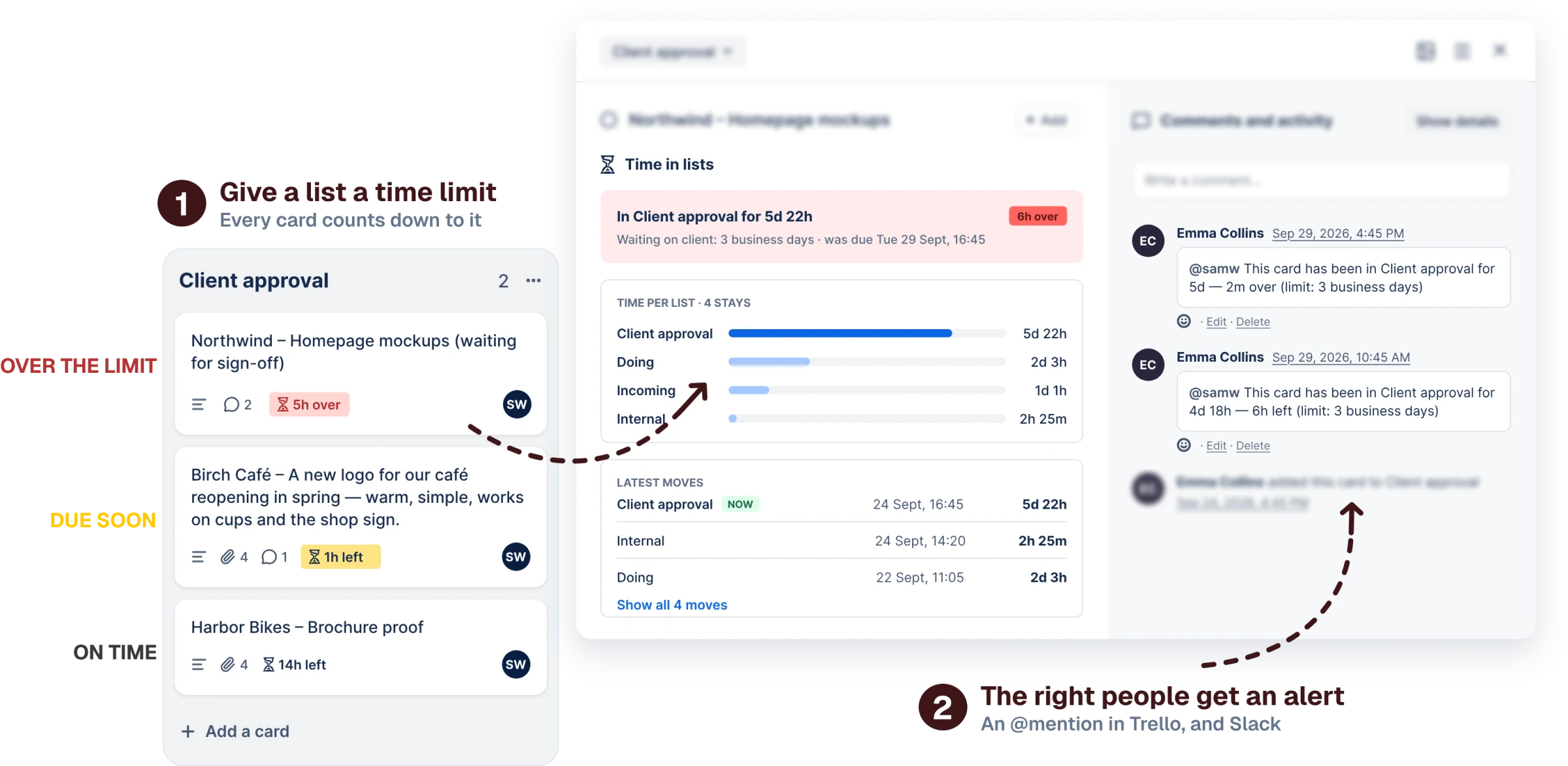
- On the card front: time in the current list. Once a board has limits, badges show only on cards in lists with a limit, unless you choose time in list on every card. It's a per-board setting.
- On the card back: how long the card has been in its list, its total time per list across every stay, and its latest moves with when it arrived and how long it stayed.
- With a limit: the badge counts down instead, turns yellow as the limit nears and red once it's passed, and the card's members get an @mention. That part is covered in the SLA tracking comparison.
It stores which card entered which list and when, not card titles or descriptions, and it never moves, edits or deletes a card. The 5-day trial starts when you save your first limit. After it, the back of every card still shows its time in each list; the countdowns, colours and alerts need a plan (pricing).
See how long every card has waited
SLA Alerts shows time in list on the card, reads back the board's history on day one, and turns a limit like “Waiting on client: 2 days” into a countdown and an @mention.
Add to Trello€5 per month for the whole workspace · 5-day free trial · No card needed
Frequently asked questions
Can Trello show how long a card has been in a list?
Not on the card front. Each move is in the card's activity with its time, so you can work it out for one card. Automation can write the time into a comment when the card leaves a list, using variables such as {cardhoursinpreviouslist}. To see time in list on every card, you need a Power-Up.
Is Card Aging the same as time in list?
No. Card Aging fades cards that have had no activity for 1, 2 or 4 weeks, and any comment or edit resets it, even if the card hasn't moved. Time in list counts from when the card entered its current list, whatever happened on it since.
Is there a free way to see time in list in Trello?
Yes, with limits. Reading the card's activity and automation comments are free on every plan, though automation runs count against a monthly quota of 250 on Free. Card Time In List by GTOLA shows a time-in-list badge for free; its card-back history, colours and working hours are paid.
Can I see how long a card spent in each list, not just the current one?
Several Power-Ups keep that history on the card back, including Time in List by Blue Cat, List Time Tracker, GTOLA's Premium tier and SLA Alerts, which totals the time per list across every stay and lists the latest moves.
Does time in list include nights and weekends?
Usually, yes: time in list is clock time from the moment the card entered the list. To measure a target in working hours, you need a tool with a working-hours clock, such as GTOLA's Premium tier, SLA Timers & Deadlines or SLA Alerts.