



Disclosure: we make SLA Alerts, and the setup steps below are for it. The sections on what Trello does natively, and the other Power-Ups with working hours, apply whichever tool you use. Checked against Atlassian's support pages and the Power-Ups' directory listings in October 2026.
Why calendar time makes SLAs look worse than they are
Most response targets are promises about working time. "We reply within 8 hours" means 8 hours when someone is at a desk, not 8 hours of the night. A clock that counts every hour breaks that promise on your behalf:
| Card enters the list | Limit | Calendar clock: due | Working hours (Mon–Fri, 09:00–17:00): due |
|---|---|---|---|
| Friday 16:00 | 8 hours | Saturday 00:00 | Monday 16:00 |
| Friday 15:00 | 2 days | Sunday 15:00 | Tuesday 15:00 (2 days = 16 working hours) |
| Wednesday 18:30 | 4 hours | Wednesday 22:30 | Thursday 13:00 |
With the calendar clock, the Friday card goes red at midnight, any alert lands when nobody reads it, and Monday starts with a board full of red cards that were never really late. Once people learn that red usually means "weekend", they stop looking at it, which defeats the point.
Calendar time is still right for some lists. If you promise clients a reply "within 48 hours" around the clock, or a list holds work that runs over the weekend, count every hour. The point is to choose per limit, not to have one clock forced on every list.
What Trello can do natively: working days, not working hours
Trello's automation can set a due date a number of working days ahead, and its date variables take a nextworkingday or previousworkingday prefix (automation variables). It has no setting for working hours, your own working week or holidays, and nothing that pauses a clock.
- A support team pulling tickets in from their helpdesk found that a ticket arriving at 7pm on Wednesday became due at 7pm on Friday, outside their 9-to-5: "the only option we have is to set it to business/working days and not working hours." Atlassian's reply: "There isn't a straight forward answer right now" (2019 thread).
- In a 2020 thread on workday hours, a community member answered that Butler can tell when a due date falls on a work day, "but no way to determine that a due date is set not on a work day", and pointed to a Google Apps Script add-on. A later reply in the same thread asks how to make Sunday to Thursday the working week, and how to keep holidays from being counted.
A common workaround is a scheduled rule that runs every evening and pushes due dates to the next working day at a fixed hour. It keeps due dates off weekends, but the deadline is still a whole day, and each run counts against the Workspace's monthly automation quota (250 on Free, 1,000 on Standard, unlimited on Premium, per Atlassian's quotas page).
Power-Ups that count working hours
Of the SLA and time-in-list Power-Ups we compared in our SLA tracking guide, three say in their listings (October 2026) that they count working time:
- SLA Timers & Deadlines by Alaryx Tech has calendars with working days and hours, public holidays, custom days off and extra working days, and different calendars for different SLAs. It is the most complete on holidays.
- Card Time In List by GTOLA has working-hours tracking and excluded days (such as weekends) in its Premium tier, $10 per member a year. It measures time in list, with colour ranges, and doesn't send alerts.
- SLA Alerts (ours) counts working hours per board, in the board's time zone, with different hours per day. It has no holiday calendar. The rest of this guide shows how it is set up.
If your queue is an email inbox rather than a list of tasks, our Trello help desk guide covers reply targets counted in working hours for email.
Set up a business-hours SLA in SLA Alerts
Working hours belong to the board, and each limit chooses whether to use them.
- Open SLA Alerts from its board button and go to Settings, then Working hours.
- Pick the time zone the team works in. Until somebody saves, it suggests your browser's zone with Monday to Friday, 09:00 to 17:00.
- Choose the working days and the hours. If Friday is shorter, tick Different hours per day and set each day on its own. Save.
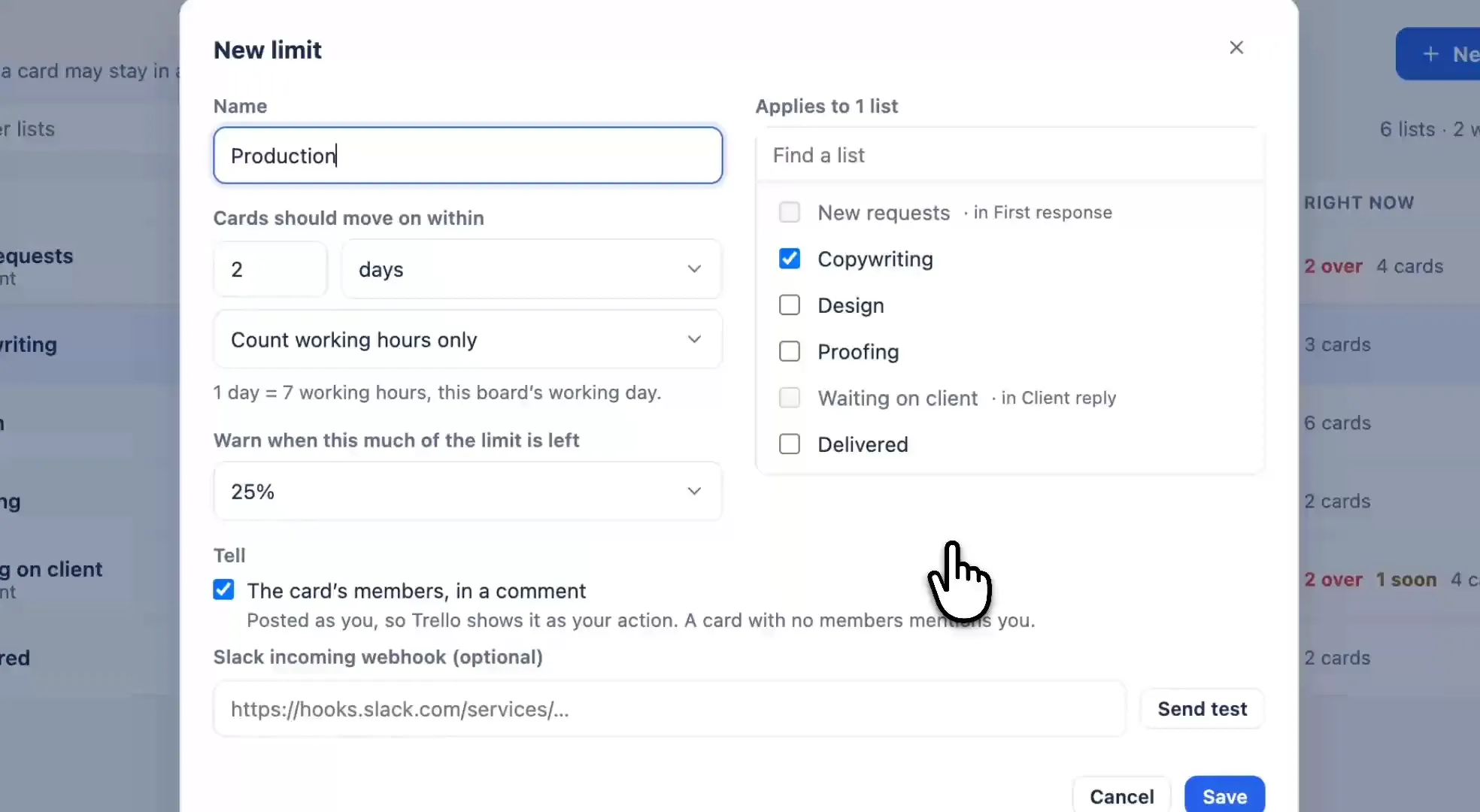
- On the Limits tab, create a limit: a name, the lists it covers, and how long cards may stay, in hours or days.
- Choose "Count working hours only". The hint under it shows how long one day is on this board, such as "1 day = 7 working hours, this board's working day."
- Pick the warning (10, 25 or 50% of the limit left, or none) and who is told: the card's members in a comment, a Slack channel, or both. Save.
If you save a working-hours limit before the board's hours were ever saved, the suggested hours are saved with it, so the limit never counts against a time zone nobody chose.
How the working-hours clock counts
- Hours are working hours. A 4-hour limit on a card that arrives at 16:00 on a 09:00–17:00 board is due at 12:00 the next working day.
- A day is one working day, as long as the board's average working day. On Monday to Friday, 09:00 to 17:00, "2 days" is 16 working hours. With Monday to Thursday 08:00–17:00 and Friday 08:00–14:00, a day is 8.4 hours (the average of 9, 9, 9, 9 and 6), so "2 days" is 16 hours 48 minutes of open time.
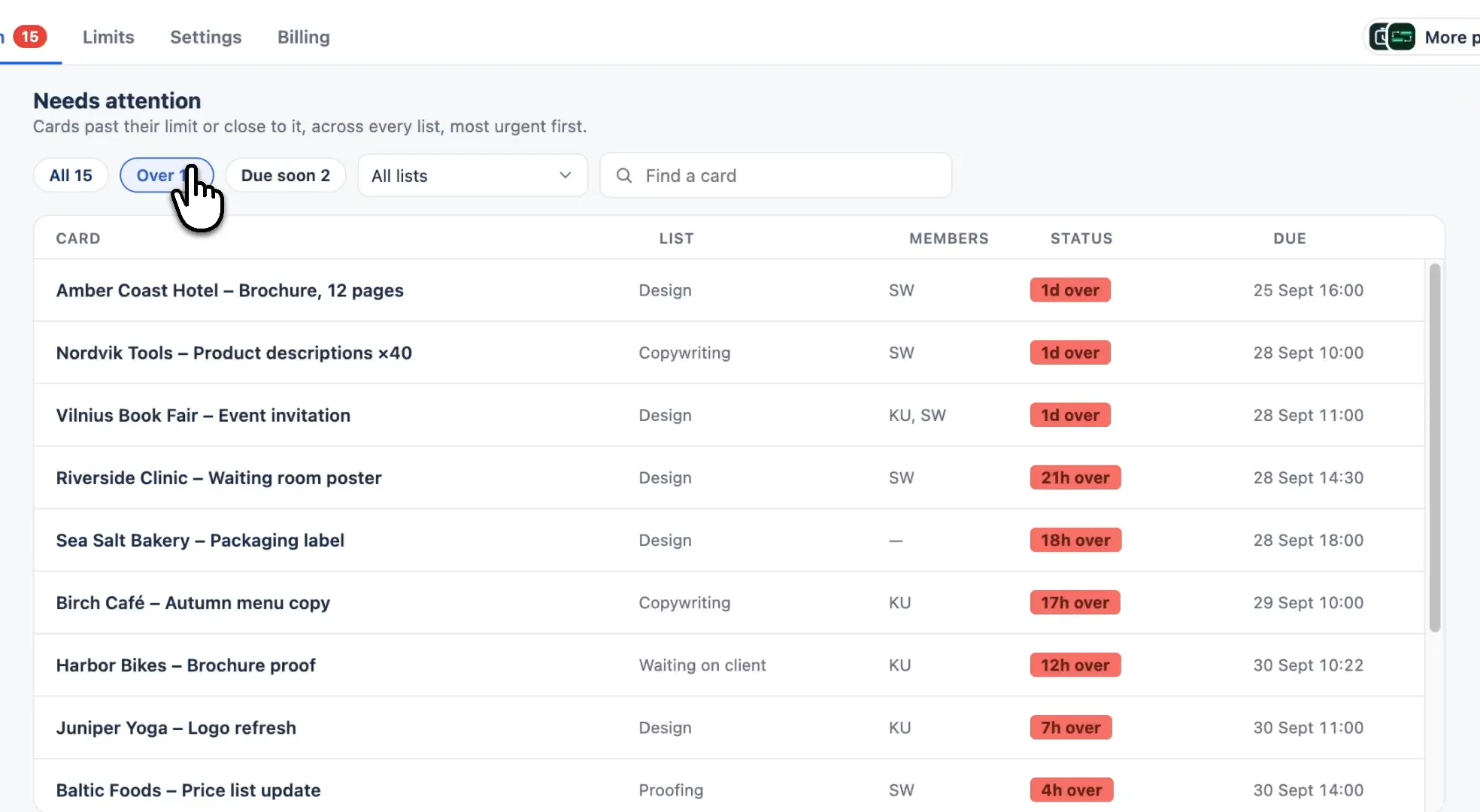
- Outside working hours the clock stops, and the badge says when it starts again, such as "resumes Thu 09:00".
- A late card stays red overnight. Being late matters more than nobody being at work, so an overdue badge doesn't turn into "paused".
- Alerts arrive in working hours. With the clock stopped outside them, a limit can only run out, or reach its warning point, while the board is open.
- The card back shows both clocks. "In this list" is plain calendar time; the limit is counted in working hours. A card can read "in Client approval for 5d 22h" and be "6h over a limit of 3 business days", and both are true.
What it doesn't handle
- Holidays. There is no holiday calendar. A public holiday on a working weekday counts as a working day. If your targets must skip holidays, SLA Timers & Deadlines handles them.
- Lunch breaks. Each working day is one window, from opening to closing.
- Teams in several time zones on one board. A board has one time zone and one set of hours. Pick the zone of the people who have to answer, or split the work across boards, which can each have their own hours.
- Pausing on a condition. The clock stops for working hours only. A card waiting on a customer keeps counting unless it moves to a list with its own limit, or none.
That last one is often the cleanest answer anyway: give "Waiting on client" its own limit, or no limit, and the clock for "In progress" stops when the card leaves it. Each move starts a new stay with its own clock. More on that in SLA tracking in Trello, and on reading the times in time in list in Trello.
A clock that stops when you do
Set your board's working hours once. Limits count only those hours, cards say when their clock resumes, and alerts arrive while someone is there to read them.
Add to Trello€5 per month for the whole workspace · 5-day free trial · No card needed
Frequently asked questions
Can Trello count business hours?
Not natively. Automation can set due dates in working days and use next or previous working day in date variables, but it has no working hours, no custom working week and no holidays. A Power-Up with a working-hours clock is needed for targets in business hours.
How long is a business day in SLA Alerts?
One working day on the board: the average length of its working days. On Monday to Friday, 09:00 to 17:00, a 2-day limit is 16 working hours.
What does a card show outside working hours?
A card under a working-hours limit shows when its clock resumes, such as "resumes Thu 09:00". A card that is already over its limit stays red.
Can different boards have different working hours?
Yes. Working hours and the time zone are set per board, and each day can have its own hours. Each limit chooses whether to count working hours only or every hour.
Does SLA Alerts skip public holidays?
No. There is no holiday calendar, so a holiday on a working weekday counts as a working day. If your targets must skip holidays, SLA Timers & Deadlines by Alaryx Tech supports holiday calendars.