







Disclosure: we make Client Forms & Portal, whose approval requests are described near the end. The native flow before that works without it. We checked Trello's automation docs and Hipporello's prices on their own pages in October 2026.
Does Trello have client approvals?
No. Trello has no approve or reject step. Teams build one from lists, labels, checklists or card buttons, which works when the approver is on the board. For a client who isn't, the choice is between email, a guest seat, or a Power-Up that asks them outside Trello and writes the answer back to the card.
| Method | Approver needs Trello | Record of who approved | Card moves itself | Cost (as of October 2026) |
|---|---|---|---|---|
| Client replies to an email | No | Partly, in someone's inbox | No | Free |
| Client comments "approved" or ticks a checklist item | Yes, as a guest | Yes, in the card's activity | With automation | Free on one board |
| Approve and Changes card buttons | Yes, as a guest | Yes, a comment with their username and the date | Yes | Uses automation runs: 250 a month on Free, 1,000 on Standard |
| Hipporello Advanced Approvals | No, through a portal | Yes, a process log | Not stated | Premium $7 per board per month, 14-day trial |
| Client Forms & Portal (ours) | No, a private link | Yes, a card comment with their email and the time | Yes, to the list you choose | €10 per workspace per month or €100 per year |
Why sign-off by email goes wrong
The usual flow: someone exports the files, writes an email, and waits. The client replies "looks good, but can the logo be bigger?" to an older thread, and a colleague answers from a different one. Three weeks later nobody can say which version was approved, by whom, or when. Meanwhile the card sits in "Client review" because nobody remembered to move it.
An approval needs four things to hold up later: what exactly was approved (the file and its version), who approved it, when, and a card that moves on so the team sees it. Email gives you the second and third, scattered across inboxes.
The same list comes up in the forums. In a May 2025 thread started after the "Approvals for Trello" Power-Up was announced as discontinued, a Premium customer with hundreds of rules wrote that "it must be clear who has to approve" and that "an entry in the activities via a changed user field is not sufficient" for their controlling team.
A native approval flow for approvers on the board
If the approver is a colleague, or a client you are happy to invite to one board, Trello's automation gets you most of the way. Set up three lists, such as Client review, Approved and Changes requested, and two card buttons.
- Open Automation at the top of the board, go to the card buttons and create one called Approve.
- Give it the actions move the card to the list Approved, add the green label Approved and post a comment such as
Approved by {username} on {date}. Trello fills in{username}with whoever pressed the button (automation variables). - Create a second button, Request changes, that moves the card to Changes requested and posts
Changes requested by {username} on {date}. Ask the approver to write what should change in a comment. - Attach the files for review and write the version in the file name, such as
Birch_logo_v2.png, so the comment and the file can be matched later.
That gives you who, when and a card that moves. Its weak points: the approver must be on the board, so a client sees every other card there (see our guide to a client portal without a Trello seat), and "what exactly" is still a matter of convention, because the button doesn't know which files were up for review. Each press uses an automation run from the workspace's monthly quota: 250 on Free and 1,000 on Standard, unlimited on Premium (Trello pricing).
Simpler versions work too: a checklist item called "Client approved" that a rule watches, or a comment the team moves the card after. They record who and when in the card's activity, but rely on people doing the right thing.
Approval Power-Ups
Card Approvals by Tiny Power-Ups Club was suggested as a replacement in the thread above. It assigns cards to board members for approval, which suits internal sign-off. Check its listing for the current price.
Hipporello Advanced Approvals lets you "set Trello members or non-Trello users as approvers", who answer in Trello or on a branded portal, with email notifications and a log of each step. Premium, which includes non-Trello reviewers and several approvers per request, costs $7 per Trello board per month after a 14-day trial (Hipporello pricing). It fits multi-step approval chains, such as purchase orders that need two managers.
Our own Power-Up handles the simpler and more common case in client work: one client, one set of files, approve or ask for changes.
How an approval request works in Client Forms & Portal
In Client Forms & Portal, an approval is asked from the card and answered on the client's own page. They need no Trello account.
- Share the card with the client, if a form hasn't already done it: open the card's Client section, click Share and type their email.
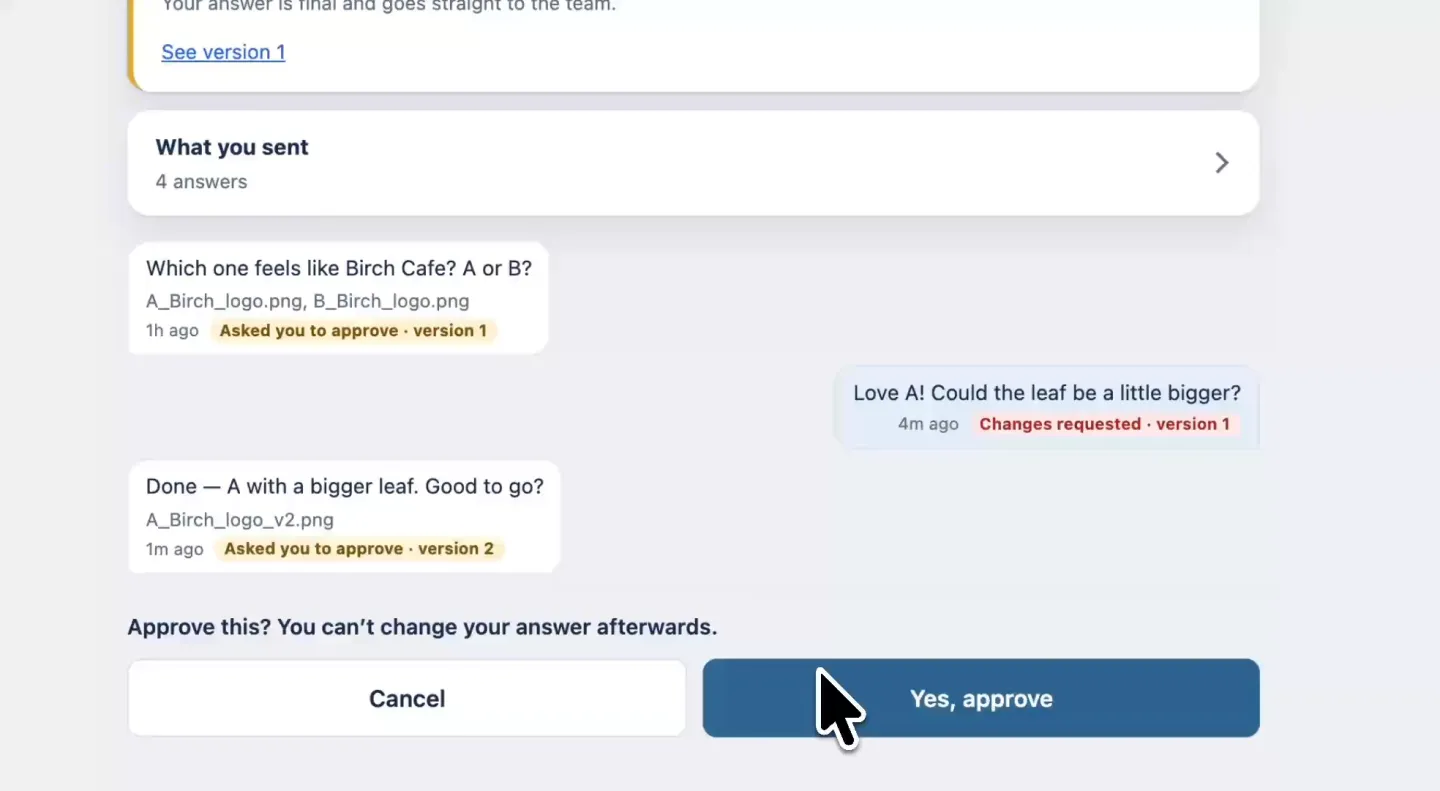
- Write your question in the Client section, for example "Which one feels like Birch Café? A or B?", and choose Ask to approve….
- Tick the files they should see. Only those files reach their page, never the rest of the card.
- Pick where the card goes when they approve (say, Done) and when they ask for changes (say, Doing). Both are optional.
- Send. The client gets an email, and your question with the file names is posted on the card as a comment.
What happens when the client answers
- Approve is final. The card gets a comment such as
Approved by client@example.com on 2026-10-08 14:32 UTC, which mentions the card's members, and moves to the list you picked. - Request changes needs a few words on what should change, and the client can attach their own files. Those files go onto the card, and the comment carries their words.
- The card front shows where it stands: a badge reading Awaiting, Approved or Changes.
- Each new request is the next version. Send the revised file and the client sees "version 2", with version 1 and their own comments still on the page.
- If nobody answers, one reminder goes out by itself after three working days. You can also press Remind on the card back, at most once a day, and the card back shows whether they have opened the request yet.
A card has one open request at a time, so asking again replaces the one before. If the target list has been archived by the time the client answers, the card stays where it is and the comment says why. It all costs €10 a month or €100 a year for the whole workspace, with every board, member and client included.
A sign-off that holds up later
Whatever tool you use, these habits do most of the work:
- Ask about specific files, named with their version, not "the latest designs".
- Ask one person. If the client needs an internal decision, let them have it and send you one answer.
- Ask a question they can answer with yes or a short change, such as "A or B?" or "Is the copy on page 2 final?"
- Keep the answer on the card, where the next person on the job will look for it, not in an inbox.
- Move the card when the answer arrives, by automation or by the tool, so the board shows what is signed off.
Sign-off in one click, and the card moves itself
Client Forms & Portal asks your client to approve the files you pick, records the answer on the card and moves it to the list you chose.
Add to Trello€10 per month for the whole workspace · 5-day free trial · No card needed
Frequently asked questions
Does Trello have an approval feature?
No. Trello has no approve or reject step. Teams build one from lists such as Client review, Approved and Changes requested, with card buttons that move the card and post a comment, or add a Power-Up that handles approvals.
How do I make an Approve button in Trello?
Open Automation at the top of the board and create a card button called Approve. Give it the actions move the card to the Approved list, add an Approved label, and post a comment such as Approved by {username} on {date}. Only board members can press it.
Can a client approve a Trello card without a Trello account?
Not with Trello alone, because buttons, comments and checklists all need a board member. Power-Ups such as Hipporello Advanced Approvals and Client Forms & Portal send the client a link to a page outside Trello and write their answer back to the card.
How do I keep a record of who approved what?
Name the files with their version, ask one person, and keep the answer on the card. A card button that posts a comment with {username} and {date} records who and when. Client Forms & Portal posts a comment with the client's email and the time, and keeps each round as a numbered version.
What happens if the client doesn't answer?
With email or native Trello, someone has to chase them. Client Forms & Portal sends one reminder by itself after three working days, and the card back shows whether they have opened the request. You can also send a reminder by hand, at most once a day.