
Disclosure: we make Checklist Front, the free Power-Up described near the end of this guide. Everything before that section works without it. We checked Trello's menus and plans against Atlassian's support pages, and other Power-Ups' prices against their Trello directory listings, in October 2026.
What Trello shows on the card front
A count, not the items. A card with checklists carries one badge, such as ☑ 2/6: ticked items over all items, across every checklist on the card. When everything is ticked the count turns green, and the back of the card has a progress bar per checklist (Atlassian support).
On Standard and higher plans, advanced checklists add a due date and an assignee to each item, and the card front then shows "the soonest approaching due date across all checklist items" next to the count (Atlassian support), as in 1/5 • 21 Sept. Trello's pricing page lists advanced checklists under Standard, at $5 per user per month billed annually ($6 monthly) as of October 2026 (Trello pricing).
So from the board you know how much is left on a card, and on Standard when the next item is due. You don't know what is left. "2/6" on a card called "Launch the spring campaign" could mean the copy is done or that nobody has started.
| Method | Names the items | On every card at once | Price (Oct 2026) |
|---|---|---|---|
| Trello's checklist count | No, a count | Yes | Any plan |
| Clicking the count to preview | Yes, and you can tick them | No, one card at a time | Built in; plans not documented yet |
| Next step written in the card title | One, typed by hand | Yes | Any plan |
| Show Checklist | Yes, several layouts | Yes | $1.99/month or $19.99/year, 14-day trial |
| Deeplists | Yes, with nested items | Yes | $7.49/month per board, $14.99/month per workspace |
| Checklist Front (ours) | Yes, the next 0 to 5 | Yes | Free |
Trello's own preview: click the count
Trello has added a quicker look: click the checklist badge on the card front and the items open right there, where you can tick one and click again to close them. How to Trello reported it in May 2026; Atlassian's checklist article doesn't describe it yet, so if your board doesn't do it, it hasn't reached you.
The preview is enough when you work one card at a time: open the board, pick the card, check what is left, tick it off. It saves opening the card. What it doesn't do is show the board: to know what is next on twelve cards, you still click twelve times.
Two habits that need no Power-Up
- Keep the next item at the top. Drag items into the order you will do them in. It costs nothing, and anyone who opens the card or the preview reads the next step first.
- Turn big items into cards. An item that needs its own discussion, files or due date can become a card from its Item actions menu with Convert to card; the name, due date and assignee move with it (Atlassian support). The new card shows on the board like any other.
Writing the next step into the card title, as in "Spring campaign: next, book the photographer", also works on any plan. It works until the first time someone ticks the item and forgets to rename the card.
Power-Ups that name the items on the front
One thing to know before installing any of them: Trello doesn't give a Power-Up the checklist items when it draws a card front, only the totals. To name the items, a Power-Up reads them through Trello's API, which means you authorize it with your Trello account. Read access is all it needs to show items; check what the authorization window asks for.
- Show Checklist by ADF Tech offers layouts from every checklist and item to only the first incomplete item, or progress per checklist. Paid after a 14-day trial, at $1.99 a month or $19.99 a year according to its listing.
- Deeplists by Lovette Software is a richer checklist: nested items, priorities, several people per item and text items, with tasks shown on the card front. It suits teams who have outgrown Trello's checklists. $7.49 a month per board or $14.99 per workspace, with a two-week trial, according to its listing.
- Checklist Front is ours and free. It reads Trello's own checklists, so nothing changes about how you add or tick items.
How Checklist Front does it
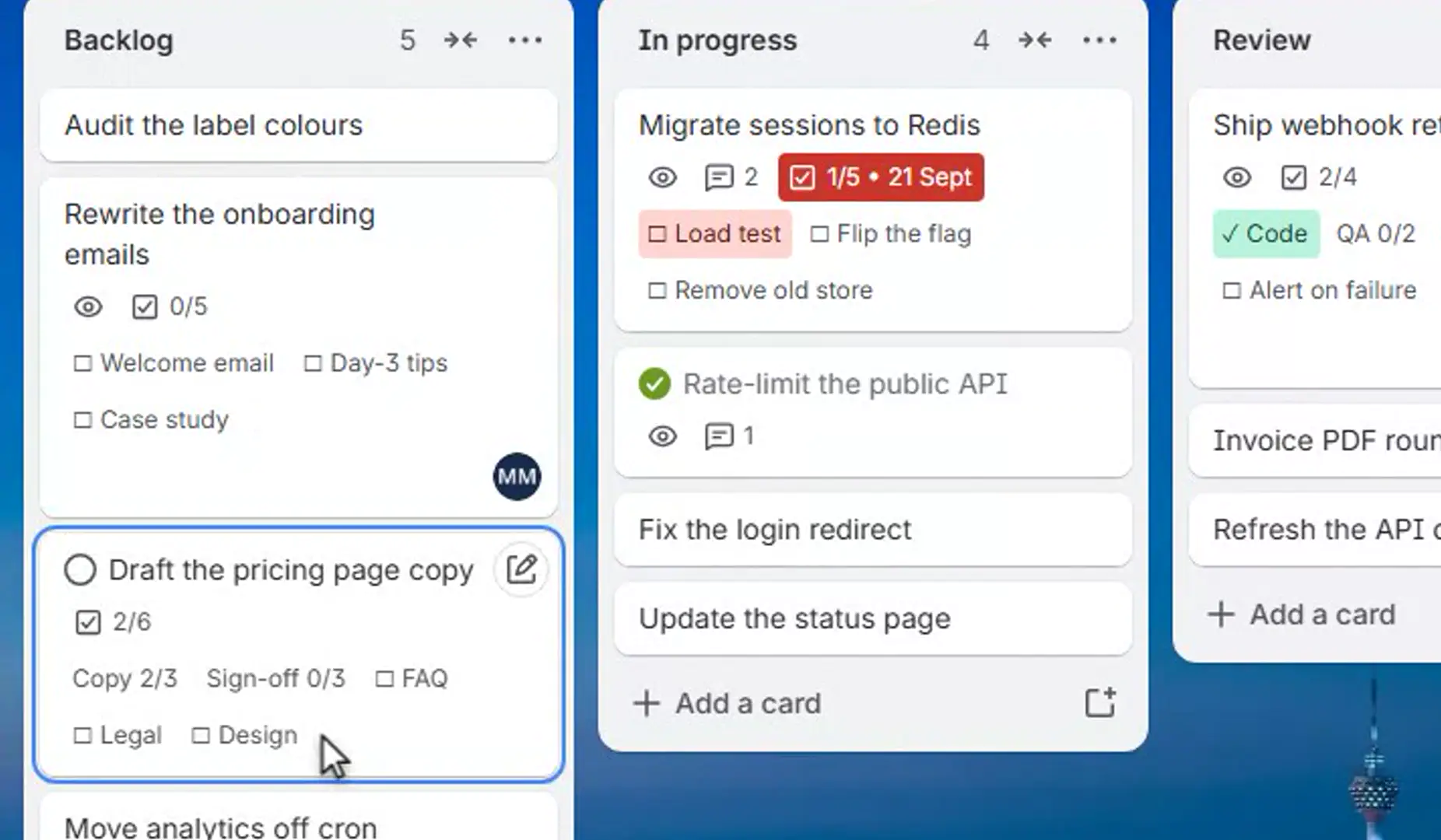
- The next unticked items, by name. Read in checklist order, then item order, until the count is filled: 3 by default, anywhere from 0 to 5. Long names are cut at 40 characters.
- Progress per checklist. On a card with more than one checklist, each gets its own badge, such as
Copy 2/3. With a single checklist Trello's own count already says it, so nothing is added. A finished checklist reads✓ Copyin green, or disappears if you tick "Hide finished checklists". - Overdue items in red. An item past its own due date is red on the front, and the board button reads "Checklist Front · 2 overdue". This uses item due dates, so it needs advanced checklists, which means Standard or higher.
- Only your items. One setting narrows the item badges and the overdue count to items assigned to you. It is saved for you alone; everyone else's fronts stay as they were. Assignees on items are also advanced checklists.
- Six badges, at most. However many checklists a card has, it gets six badges from this Power-Up, progress first.
Tick an item and the front redraws: the item drops off and the next one moves up. The overdue number on the board button is counted when the board loads and stays until the next load.
What it asks for. Each member authorizes once, with read-only access; until they do, their fronts look as Trello draws them. The token stays with their Trello account and is never sent to us. The badges are built in the browser from Trello's API, and the settings are stored on the board. Our server hands the Power-Up its Trello app key and records usage events, such as that it was enabled or authorized; no card, checklist or item name is stored on our side.
On the Free plan the item names, the progress badges and the green tick all work. The red overdue badges and "only my items" have nothing to work with, because item due dates and assignees start at Standard.
The next thing to do, on the card
Checklist Front names up to five unticked items on every card front, shows how far each checklist has got, and turns overdue items red.
Add to TrelloFree · No card, no account · Up to five items, per-checklist progress and overdue in one popup
Frequently asked questions
Can Trello show checklist items on the front of a card?
Not permanently. The card front shows a count of ticked and total items, and clicking that count can open the items in place on one card at a time. To see the item names on every card at once, use a Power-Up such as Show Checklist, Deeplists or Checklist Front.
Why did my checklist count turn green?
Every checklist item on the card is ticked. Trello turns the count on the card front green, and the progress bar on the back green, once all items are complete.
How do I see checklist due dates on the card front?
With advanced checklists, on Standard or higher, the card front shows the soonest due date among the card's checklist items next to the count. Checklist Front also turns each overdue item red and counts all overdue items on the board button.
Does Checklist Front work on a free Trello board?
Yes for the item names, the per-checklist progress and the green tick on finished checklists. The red overdue badges and the "only items assigned to me" filter need item due dates and assignees, which are advanced checklists on Standard or higher.
Why does a checklist Power-Up ask to authorize my Trello account?
Trello gives a card front only the checklist totals, not the items. A Power-Up that names the items reads them from Trello's API with your authorization. Checklist Front asks for read-only access, and the token is not sent to its makers.