







Disclosure: we make Card Age, the free Power-Up described near the end of this guide. The four methods before it are Trello's own and work without it. We checked the menus, plans and prices below against Atlassian's support pages, the Trello Power-Up directory and each vendor's own page in October 2026.
Does Trello show how long a card has sat still?
Not on the card front. A card shows its members, due date, checklist count and labels, but nothing about when anyone last touched it. The history is in the activity feed on the back of the card, and nobody opens forty cards to read it.
Trello has four ways to bring quiet cards to the surface, and none of them needs a paid plan:
| Method | What you see | How long counts as stale | Trello plan |
|---|---|---|---|
| Card Aging Power-Up (made by Trello) | Cards fade, or yellow and crack in Pirate mode | Fixed: 1, 2 and 4 weeks | Any |
| Board filter, Activity section | Only the matching cards stay on the board | Fixed: 1, 2 or 4 weeks | Any |
Search with edited: |
A list of cards, across all your boards | Any number of days | Any |
| Scheduled automation report | An email or message listing inactive cards | Any number of days | Any, within the plan's command runs |
| A day-count badge Power-Up, such as Card Age | The number of days on each quiet card, in colour | Your own thresholds | Any |
Trello's own Card Aging Power-Up
Card Aging is made by Trello, is still in the Power-Up directory in October 2026, and is free on every plan. Once it is on, cards that nobody touches start to look old. In Regular mode they become more and more transparent; in Pirate mode they "tear, yellow, and crack like an old pirate map" (Atlassian support). Its directory listing gives the thresholds as 1, 2 and 4 weeks of inactivity. An updated card goes straight back to normal.
The back of the card shows when it was last updated, and a card button marks a card as Evergreen, so a reference card never fades.
It is enough when a week is a sensible first warning on your board and a visual hint is all you want. Where it falls short:
- The weeks are fixed. A support queue where two days of silence is already late can't change them.
- A fade has no number. You can tell a card is old, not whether it is 9 days or 40 days old, and a faded card is harder to read.
- Exceptions are per card. Evergreen is set card by card, so a whole Backlog or Done list ages unless you mark every card in it.
- No total. Nothing says how many cards on the board have gone quiet.
The board filter: "Without activity in the last four weeks"
Press F on a board, or select Filter, and scroll to the Activity section. It offers cards active in the last week, two weeks or four weeks, and cards without activity in the last four weeks. Tick the last one and only the quiet cards stay on the board. The filter stays on until you clear it, and X clears every filter at once (Atlassian support).
This is a good monthly sweep: filter, go through the cards that are left, archive or move what is dead. It doesn't help with anything shorter than four weeks of silence, and on a board where clients expect an answer within days, four weeks is long past the point where someone should have noticed.
Search: edited: with your own number of days
Trello's search takes a number of days. edited:21 finds cards edited in the last 21 days, created:14 cards created in the last 14, and a minus in front of any operator turns it into a negative search (Atlassian support). So -edited:14 asks for cards nobody has edited in two weeks, across every board you can see.
It is the most flexible native option and the least visible: the result is a list in the search panel, not a mark on the board.
Automation: a weekly report of quiet cards
Trello's automation has no trigger for "a card has been inactive for 10 days". What it can do is run on a schedule and filter cards by inactivity. An Atlassian Community expert suggests a scheduled command such as "create a report with all cards inactive for more than 10 working days", sent by email or Slack (Atlassian Community).
Two details catch people out:
- The hourglass option in the "archive cards in a list" action counts how long cards have been in that list, not how long since anyone touched them (Atlassian support).
- Each run counts against the Workspace's command runs: 250 a month on Free and 1,000 on Standard, as of October 2026 (Trello pricing). A weekly report uses only a handful.
What counts as activity, and when to count from creation
All of the methods above use the card's last activity: a comment, a move, an edit. That is usually what you want, with one catch. Dragging a card to tidy a list, or a rule that relabels it, counts as activity too, so a card can look fresh while the work on it has stopped.
The other clock is the card's creation date, which never resets. It suits boards where a card is a request and the question is how long the client has been waiting. Card Aging, the filter and automation only use last activity; search offers both, as edited: and created:.
A day count on the card: Card Age
Card Age is our free Power-Up for the gap the native tools leave: a number on the card, thresholds you choose, and lists left alone.
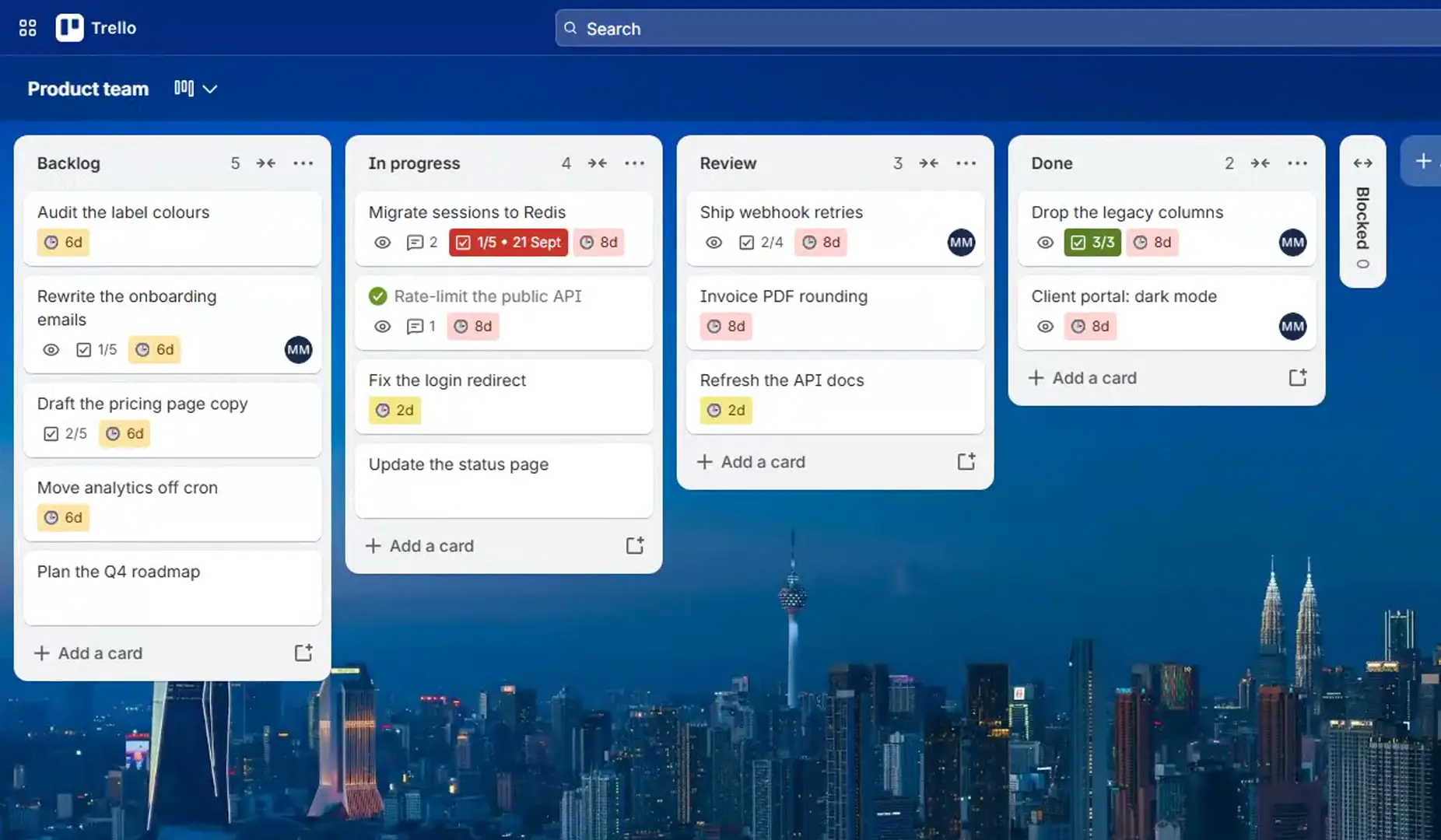
- A badge with the days. A card that has sat still for 9 days reads
🕒 9d. By default the badge turns orange after 7 days and red after 14; younger cards carry nothing. - Your own tiers. Set the days for warn and stale, and switch on a third, earlier tier (yellow by default) if you want a first nudge. Each tier takes a colour from Trello's badge palette.
- Either clock. Measure from the last activity or from the day the card was created.
- Lists that never get a badge. Tick Backlog, Done or anything else that is meant to sit still.
- The stale count. The board button reads "Card Age · 6 stale", counted when the board loads, and opens the settings.
- Both dates on the back. Created and Last activity sit at the top of every card.
The settings are saved on the board, so everyone sees the same badges. There is no account and no authorization step, and nothing is sent to our server: the age is worked out in your browser.
What it doesn't do: it doesn't notify anyone. A badge helps the people who look at the board. If a card that waits too long should @mention someone, that is a time limit, not a badge; our paid SLA Alerts does that per list, and CardSentry by CHPX emails a digest of stale cards (free for one board; Pro $5 a month, as of October 2026, per its directory listing). The stale count on the button is as of board load, and on very large boards (over 1,000 cards) the button leaves the count off.
A ten-minute weekly sweep
Whichever tool you use, stale cards only go away when someone decides what each one is. A routine that works for a small team:
- Leave out the lists that are meant to wait. Backlog and Done are old by design. Badging them trains everyone to ignore the colour.
- Pick thresholds that match your promises. If clients hear back within a week, warn at 5 days and call a card stale at 7, not at a month.
- Once a week, go through the red cards. Each gets a comment saying what it waits for, a move to where it really is, or the archive. Start with "Waiting on client": a card such as "Contract renewal for Brightwater Studio" that has sat for 21 days is the one a client notices before you do.
See which cards went quiet
Card Age puts the day count on every card that has sat still, orange after 7 days and red after 14, and counts the stale ones on a board button.
Add to TrelloFree · No card, no account · Three tiers and your own colours in one popup
Frequently asked questions
Does Trello have a card aging feature?
Yes, as a Power-Up made by Trello. Card Aging fades cards that have been inactive for 1, 2 and 4 weeks, or makes them yellow and crack in Pirate mode. It is free on every plan, and a card button marks a card as Evergreen so it never ages.
How do I find cards with no activity in Trello?
Open the board filter with F and tick "Without activity in the last four weeks" in the Activity section. For a different number of days, search with a negative edited: operator, such as -edited:14, or use a Power-Up that badges cards after your own number of days.
Can Trello notify me when a card has been inactive?
There is no automation trigger for inactivity. A scheduled automation can send a regular report of cards inactive for more than a set number of days. For an alert per card, use a Power-Up built for it, such as a time limit per list.
Does moving a card reset its age in Trello?
For anything based on last activity, yes: a comment, a move or an edit all count. To measure how long a card has existed regardless of activity, use its creation date, which search offers as created: and Card Age offers as a setting.
Can I stop some lists from showing as stale?
Not with Card Aging, which only exempts single cards marked Evergreen. Card Age has a list of lists that never get a badge, such as Backlog or Done, and leaves them out of the stale count too.